
- 4-Axis
- Used in Router and Hammering CNC machines
- Feature: Surface Scan
Videos
DESCRIPTION
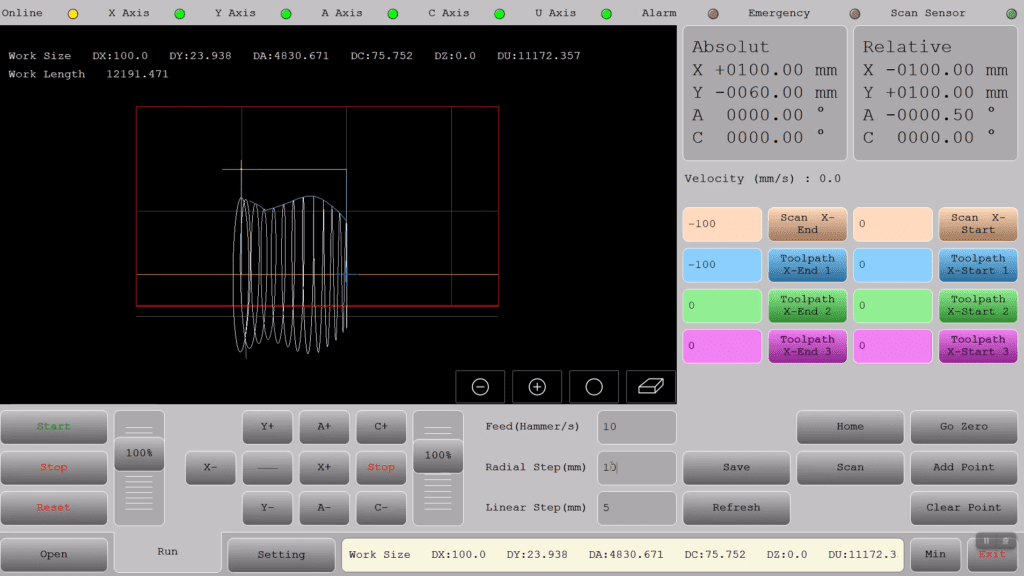
XYAC Hammer offers both automatic and manual scanning of hammering surfaces and allows for the execution of designs in two rotation axis modes: around X (like a bowl) and around Y (like a tray). It displays the scanned container shape in 3D and enables adjustments to the hammer strike distance in both directions, controlling the spacing between consecutive strikes and between rows. Additionally, the system automatically adds hammering overlap at the beginning and end of the path (Overlap). It also allows for executing specific parts of the hammering by limiting the start and end points or sections of the container. The interface supports both pneumatic and servo hammers.
Introduction
One-line value prop: High-throughput surface texturing with programmable raster steps and rotary orientation—perfect for uniform, repeatable “hammered” finishes.
Who uses it: architectural finishers, foundries/metal finishing, surface-prep shops.
Works with: 4-axis gantries (X, Y, A, C) driving a pneumatic/hydraulic hammer head; optional surface-scan sensor.
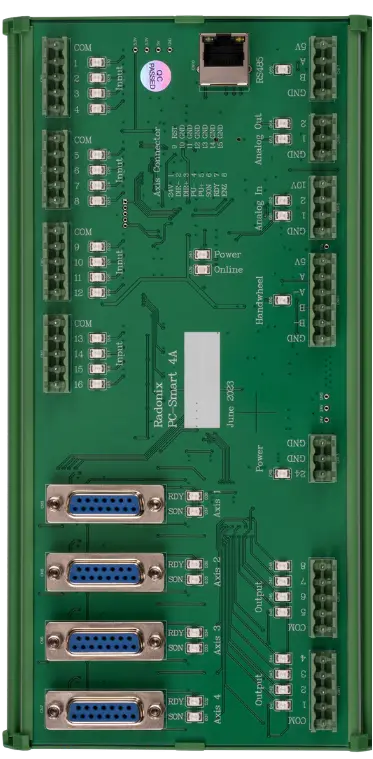
Compatible controllers: PC-SMART 4A / PC-PRO LAN 4A
Supported files: DXF and standard G-code (e.g., ArtCAM / PowerMill posts)
Machine & Kinematics
-
XY planar motion for raster coverage of the work area.
-
A-axis adjusts hammer tilt; C-axis spins/rotates the head for texture variation.
-
Configurable linear step (mm), radial step (mm), feed, and start/end overlap to eliminate edge marks.
-
Teach or type X/Y limits; “Left/Right” nudge keys for quick boundary edits.
Control & I/O
XY planar motion for raster coverage of the work area.
A-axis adjusts hammer tilt; C-axis spins/rotates the head for texture variation.
Configurable linear step (mm), radial step (mm), feed, and start/end overlap to eliminate edge marks.
Teach or type X/Y limits; “Left/Right” nudge keys for quick boundary edits.
Software & Workflow
-
Home axes → set X End / Y End or teach from edges; Go Zero / Go Ref as needed.
-
Enter Feed, LinearStep, RadialStep, Start/End Overlap.
-
(Optional) Scan with the height sensor to validate area, then Save job.
-
Run: controller rasters line-by-line; use Left/Right nudge to correct on the fly.
-
Stop / Resume from the next scan line; Refresh regenerates the path with current parameters.
Key Capabilities
(at a glance)
Key Capabilities(at a glance)
-
Programmable LinearStep / RadialStep with overlap at boundaries
-
A/C rotary orientation control for texture uniformity or randomness
-
Teachable X/Y work envelope; quick Go Zero / Go Ref
-
Optional surface-scan check before running
-
Mid-job pause/stop/resume; parameter Refresh without reloading
Standard Workflow
- Load DXF/G-code and review preview.
- Set origin and verify sheet alignment.
- Apply settings: kerf, leads, pierce rules (no THC).
- Simulate / Dry-run to confirm limits and path order.
- Run job with monitored pauses for clamps/consumables.
- Save report and notes for traceability and repeat work.
Typical Specifications
| Area | Spec |
|---|---|
| Axes | X, Y, A (tilt), C (spin) |
| Modes | Raster scan; linear & radial stepping; overlap at start/end |
| Files | Region DXF, G-code (optional); teach-from-panel supported |
| Patterning | LinearStep, RadialStep, Feed (mm/s), Start/End OverLap (°/mm) |
| Alignment | X/Y limits, Go Zero / Go Ref, Left/Right nudge; RandomRotaryReference option |
| Safety | Guards/doors, pressure OK, E-stop, over-travel; SafeY park |
| Recovery | Resume from next raster line after Stop; job Refresh with new steps |
| Reporting | Run time, covered area/lines, stops/alarms (when enabled) |
Key Features of Radonix CNC Software
🔹 Auto/Manual surface scan:
Map the workpiece with a height sensor or by teaching points, so hammering follows the true surface.
🔹 Smart Component & Path Management
Select specific parts from complex drawings and customize cutting order with intuitive control over toolpath sequencing.
🔹3D shape preview:
See the scanned surface as a 3D model to verify coverage before you run.
🔹 Flexible Part Placement
Manually drag and drop parts onto your material sheet to accommodate irregular shapes, pre-cut stock, or remnant reuse.
🔹 Stroke spacing control:
Set the along-path spacing between hits and the row-to-row spacing for uniform texture.
🔹 Reverse Cutting Mode
Execute toolpaths in reverse to minimize material warping or adjust final exit points based on design needs.
🔹 Edge overlap:
Add configurable overlap at the start and end of each path to eliminate visible edge lines.
🔹 Partial execution:
Limit the job to chosen start/end points—or specific sections—to repair or re-hammer only where needed.